Monday, 21 May 2012

Getting To Know Computer Motherboards

Getting To Know Computer Motherboards


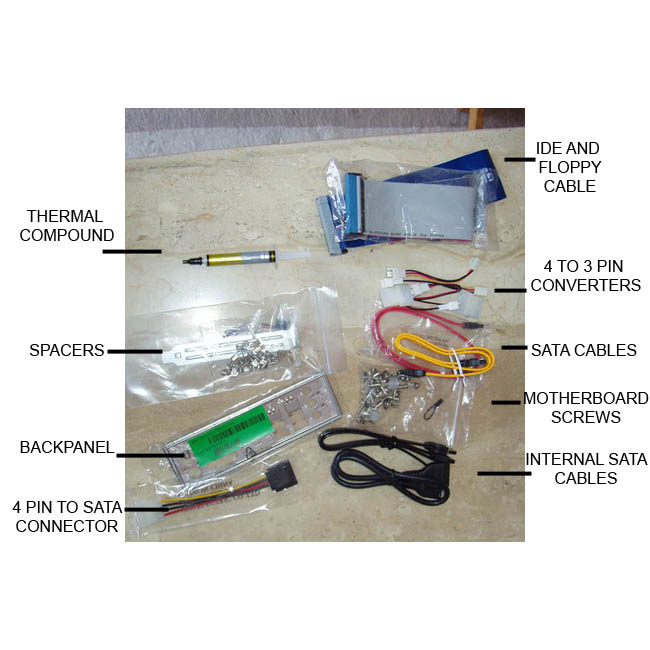
You should take an inventory of what came with your motherboard to ensure that you have everything you will need.
If you need a quick refresher of what is on your motherboard, click here to view the basic computer motherboard's layout. Even though most motherboards are laid out in similar fashion, some may have connections that others don't. Know which connections you will be using. Take a moment and study the layout of your motherboard. Once you know what you are looking at, you will recognize it on any board. You can also refer to your motherboard manual as it will contain a lot of detailed information and motherboard specs.


Next, let’s take a look at what was all included with your computer's motherboard. At a minimum, you should have gotten the following...
  • The Motherboard
  • Motherboard User Manual
  • Some will have a quick installation guide.
  • Motherboard Drivers CD
  • Back Panel Plate
  • IDE (Integrated Drive Electronics) Cable – these are usually flat gray cables, however, you may get a colored round one.
  • Most still come with a Floppy Drive Cable – this is also usually a flat gray cable.
  • SATA (Serial Advanced Technology Attachment) Cables – These will usually be smaller flat cables, about ½ inch wide – you should get 2-4 of them.
  • SATA Brackets – you may or may not get these – these are connections for external hard drives.
  • USB (Universal Serial Bus) Bracket – you may or may not get these – these will be for additional USB connections.
  • There may be other miscellaneous cables included, but the ones listed above are the main cables we'll be using.
    Here's where we stand.
    • The case is all laid out and ready to go.
    • You've taken inventory of the parts that were included with your motherboard.
    • You are familiar with the layout of your motherboard.

Monday, 7 May 2012

Sunday, 6 May 2012

Remove Virus Entry’s From Windows Registry


Remove Virus Entry’s From Windows Registry

Virus ~~~ oh how i hate them. Virus harm your PC a lot. Some virus just send sensitive information while others just harm your pc and change the way it functions . In the world there are billions and billions and billions of viruses. there is no end to this list of viruses. These viruses even after removing them leave a scar on your computer~~~ Virus was here. Well not like this but in your registry.The Windows Registry is where nearly all configuration settings are stored in Windows. Now if these settings are changed by the virus files the system will start behaving Abnormally.

To change the registry data needs to run Microsoft Registry Editor - RegEdit.exe. You can click the Start Button, then select Run… item. When the Run Window will appear, then type ‘RegEdit’ into Open: textbox and click OK button.


You might be unable to RegEdit, because the virus blocks the doorway. In this case, you need to bring up your Windows in Safe Mode to run the RegEdit. Sometimes, you need to login the Administrator account. Therefore, make sure you know your Administrator account’s password when you own the new computer.


Microsoft System Configuration Utility MSConfig.exe keeps entries of Start-Up programs. Besides that, System Registry has Run, RunOnce and RunOnceEx entry nodes to manage which program can run while Windows is starting.

First, you should check any starting programs inside the HEKY_LOCAL_MACHINE.


Go down to the node in HEKY_LOCAL_MACHINE\SOFTWARE\Microsoft\Windows\CurrentVersion, then look for program entry inside the Run, RunOnce and RunOnceEX. If you find something you don’t know, then you type the program name .exe name into the following Search box to find out what’s that. If the .exe name is the virus or spyware, then you can delete it.

It’s same that you need to check any starting program inside the HEKY_CURRENT_USER.


Go down to the node in HEKY_CURRENT_USER\SOFTWARE\Microsoft\Windows\CurrentVersion, then look for unwanted .exe programs inside the Run, RunOnce and RunOnceEX. If you find something, then delete them.


Before Doing all this please backup your registry ~~~~~~~~~~~~~~~~~~~~~~~~~~~~~

Cause if you do it all wrong you can get a system that dosent Boot


Backing up the Registry – Three methods
Method 1: Using System Restore

One way to backup the registry is to create a System Restore snapshot. System Restore returns your computer to a previous snapshot without losing recent personal information, such as documents, history lists, favorites, or e-mail. It monitors the computer and many applications for changes and creates restore points. You restore these snapshots when your configuration isn’t working. This method is unreliable in case you want to rollback the registry changes made a longtime ago, in which case the System Restore might have purged that particular restore point – due to space constraints or due to a recent system restore point or even a Restore point corruption. Please remember, System Restore points get deleted for many reasons, making it unreliable, especially in the long run.


For more help, see Creating a System Restore point and Using System Restore to Undo Changes if Problems Occur for Windows XP PCs. If you’re using Windows Vista or Windows 7, see How to create a System Restore point in Windows Vista and Windows 7.
Method 2: Backing up the selected branch of the registry by exporting

This method is preferred if you’re making changes to a specific branch of the registry. To backup a selected key in the registry, use these steps:
Click Start, and then click Run.
In the Open box, type regedit.exe, and then click OK
Locate and then click the key that contains the value that you want to edit
Right-click on the key and choose Export.
In the Save in box, select a location where you want to save the Registration Entries (.reg)
In the File name box, type a file name, and then click Save.


Backing up a selected branch of the registry…

Now that you’ve created a Registry backup for that particular key. Save the REG file in a safer location in case you want to undo the registry changes made. You can restore the settings by just double-clicking the REG file. It automatically merges the contents to the Registry.
Method 2(a) : Export Registry Keys Using Console Registry Tool

You can use the Console Registry Tool for Windows (Reg.exe) to edit the registry. For help with the Reg.exe tool, type reg /? at the Command Prompt, and then click OK.

For example, to export the key [HKEY_CURRENT_USER\Software\IOLO] and it’s sub-keys, try this from Command Prompt:

REG EXPORT HKCU\Software\IOLO D:\IOLO.REG

To view the REG contents type notepad D:\iolo.reg in Start, Run dialog. Console Registry Tool is extremely handy if you want to automate the backup task using scripts.

Friday, 27 April 2012

VIEW ALL TYPES OF RAM


All types of  RAM's along with their informations


Click here to see

Friday, 20 April 2012

How to Hack Softwares to use them Forever


Here i will show you that "How to Hack Softwares to use them Forever ?" . That really a useful article,because in our daily life we need thousand of softwares today,which of most are highly paid..So how to use them Freely for whole Like ??

Most of us are familiar with many softwares that run only for a specified period of time in the trial mode.Once the trial period is expired these softwares stop functioning and demand for a purchase.But there is a way to run the softwares and make them function beyond the trial period. Isn’t this interesting?

Before I tell you how to hack the software and make it run in the trial mode forever, we have to understand the functioning of these softwares.I’ll try to explain this in brief.Because Purpose if ICA is 1st to clear your basics.So,When these softwares are installed for the first time, they make an entry into the Windows Registry with the details such as Installed Date and Time, installed path etc.After installation every time you run the software, it compares the current system date and time with the installed date and time.So, with this it can make out whether the trial period is expired or not.

So with this being the case, just manually changing the system date to an earlier date will not solve the problem.For this purpose there is a small Tool known as RunAsDate.

RunAsDate is a small utility that allows you to run a program in the date and time that you specify. This utility doesn’t change the current system date, but it only injects the date/time that you specify into the desired application.


Download RunAsDate v1.10

Intercepts the kernel API calls that returns the current date and time (GetSystemTime, GetLocalTime, GetSystemTimeAsFileTime), and replaces the current date/time with the date/time that you specify.It works with Windows 2000, XP, 2003 and Vista.

NOTE: FOLLOW THESE TIPS CAREFULLY
You have to follow these tips carefully to successfully hack a software and make it run in it’s trial mode forever.
1. Note down the date and time, when you install the software for the first time.
2. Once the trial period expires, you must always run the software using RunAsDate .
3. After the trial period is expired, do not run the software(program) directly.If you run the software directly even once, this hack may no longer work.
4. It is better and safe to inject the date of the last day in the trial period.

For example, if the trial period expires on oct 1 2009, always inject the date as sep 30 2009 in the RunAsDate.

Warning : AVG Antivirus reports that RunAsDate is infected with "Trojan horse Generic 10.Thk". This will not harm ur pc,warning is just bcoz this is a wondow registry hack tool !

                                    DOWNLOAD RUN AS DATE FOR 86X
                                    DOWNLOAD RUN AS DATE FOR 64X

HOW TO IDENTIFY FAKE EMAILS:-


HOW TO IDENTIFY FAKE EMAILS:-


Hello friends, Daily we got almost 100's of face emails ,Like in spam folder. A php script can mail you from any email address...Even from your own email address..So How To Identify the Fake E-mail ID.Here a small guide i am going to share with my all ICA Visitors. If you like the article,then please do a comment..,At present it is difficult to identify the fake ID. With time more and more people are using the fake IDs which creates a bunch of trouble to thousands of people. So here detection of those fake IDs has become almost a necessity. It is also important because hackers are always looking to use the fake email IDs to get the personal information of victims.

There are several techniques to identify the fake e-mail IDs. The common method you can use is to send test mail to those IDs. If you got failure notification then its a fake email IDs. Alternatively there is couple of web service which identify the fake e-mail IDs for the users.

Email Address Checker:
Email Address Checker is well known email IDs checker which identify the the validity of any kind of emails IDs. All you need to do is type the email IDs in the box and press ‘Check’ button. Within a moment it displays the validity of email IDs.


        CLICK HERE 

TYPES OF COMPUTER ERROR


Blue Screen Computer Freeze


Computer freezing is a very common problem faced by users where the computer suddenly hangs, reboots, or just shuts itself down. This is a big concern as it may lead to data loss and other problems. This is a common problem everyone face and so we should know how to fix it and prevent it from occurring another time. It is mainly caused due to the corruption of the registry files which are important files that help in the running of the computed. Any fault in these files can lead to a mess up which leads to the crashing of the computer. There are many different causes that lead to the freezing of the computer. The access files in the computer are used for the storage of large amount of data. If any altering of the access files occurs then the whole program will be affected. When a person is browsing through the internet they will collect huge amount of information and data which may have some errors or malicious information. This may corrupt the registry files of the operating system and lead to computer freezing. These files are unwanted and they should be removed from the computer to avoid the corruption of files and to prevent any damage. 


Users should repair the registry files by either deleting or repairing the files. This can be done with the help of scan programs that will automatically clean up the unwanted files and repair and quarantine the required files. These programs will help in creating a back up file that will help in tracing the data and prevent any loss of information. Registry fix is a risk free program and it will not damage the files of the computer. All users should install the scan software before they encounter any problems of data loss. This is the best way to fix the registry file problems and helps in solving the errors which help in the proper functioning of the computer. It will help in providing optimum efficiency to the computer. Always use antivirus software for your computer and keep updating it from the website of the manufacturers. Install good spyware tools to the computer and keep away all the harmful spyware that may affect your computer. 


It is important to leave some space in your computer and don’t fill it up full. The drive in which the windows is installed should have some free space. If the system has low resources then you should go for a disk clean up which will help in removing all the unwanted files that are present in the computer. The computer should be constantly checked for overheating. Overheating is one of the reasons for computer freezing. If the fan in the processor does not work properly then it may lead to overheating. In this case the motherboard will get damaged and the computer will suffer problems. These things should be checked constantly when using a computer and you will be able to prevent computer freezing. It is always said that prevention is better than cure so keep the computer in good shape to get the best out of it. 

How to Quickly Fix Computer Freezes
Bottom line is that anytime your computer freezes it is a bad thing and something is broken with your computer that needs fixed immediately without causing costly damage to your computer. We recommend that you run a free scan of your computer to find all of the hidden errors that is causing your computer to freeze. Don’t let these errors slow down your computer causing you to pull your hair out in frustration. Not taking action to clean up your computer can cause $100’s of dollars not including countless hours of lost productivity. Remove every error and experience a flawless running, super fast PC just like it was when you first bought it. The great news is that all of this can be done by performing a Free Scan of your computer and in less than 2 minutes you can take care of the problem.


Error 1706


Error 1706 is referred to as a Microsoft Office Error message which generates when installing any Windows program. This error indicates that these required files are not found in your setup. Sometimes the text for Error 1706 includes the phrases like “no source can be found” on your computer screen. This type of error occurs due to few reasons which include either you originally install Microsoft program from the network administration, you are trying Microsoft CD-ROM when you are restricted by the Windows Installer for exact location or the network administration is not available in your system. In these cases the Microsoft reports that Office XP and MS Office 2003 setup have some problem.
 
This kind of problem can also occur when you posses an unlicensed version of MS Office 2003 or you have not yet registered it. It can also occur due to the Group Policy setting on your personal computer which prevents access to the installation files. There are many other reasons why this kind of problem and the simplest problem can be that the DVD-ROM or CD-ROM may be having difficulty reading the disk and perhaps require to be cleaned. At times it can be a serious problem with Windows Installer or Registry program. So, check and ensure that CD or DVD-ROM which you are installing or even updating is original and that both the disks and clean. Error 1706 can have several serious possible causes. 

One of the files may be needed by the application can have been deleted and this may lead to this kind of error. This can happen if you have installed different kind of program and it did not read the existing files. In order to find out what are the files which are missing from your application you have to analyze all your logs and see which path that is labeled is not available. As you find the file name then you can find a particular file by utilizing the search feature that is located on the start menu. However, if nothing is the result of your search then you can reinstall that program. A PC optimizer or registry cleaner such as RegCure can sort out the registry and decide if there are ay conflicts in the system.
 
If this is the case then this problem must be fixed immediately by scanning the RegCure scanner and see if there is any error which has led to this kind of error messages. To fix this problem other than re-installing or uninstalling your Microsoft will certainly need the registry to be edited. This at times can be dangerous if you do not understand exactly what it is. At the most you would require to have a backup as any mistake in editing by using the start or run process can cause complicated failures and your entire information may e lost. There are times when you get some strange error messages when you are about to install some programs with limited freedom or without license. If you do not understand what to do to solve this problem it is better to consult a professional who can solve your problem. 

How to Quickly Fix 1706 Errors
Bottom line with any of these 1706 errors is that you want them removed from your computer immediately without causing costly damage to your computer. We recommend that you run a free scan of your computer to find all of the hidden errors. Don’t let these errors slow down your computer causing you to pull your hair out in frustration. Not taking action to clean up your computer can cause $100’s of dollars not including countless hours of lost productivity. Remove every 1706 error and experience a flawless running, super fast PC just like it was when you first bought it. The great news is that all of this can be done by performing a Free Scan of your computer and in less than 2 minutes you can take care of the problem.


Error 2753


For several users, ‘error messages’ can prove of being confusing and frightening, as they don’t know the problems or the happenings with regards to their system. It should be noted that error 2753 is nothing but one of the internal errors, at times concerned with Norton anti virus or Dell Support programs. Besides, problems arising due to this error might result in termination of application process by your computer. The computer might also crash, or repeatedly try re-booting. It can also quit completely. Error 2753 can be commonly observed after a ‘system problem’, i.e. when the system’s recovery has been done and installation of missing programs takes place again.

Reasons behind occurrence of error 2753
One of the most probable reasons behind occurrence of error 2753 might be that certain age-old file fragments, that too, from missing program still exist in your system’s registry. Such a thing is likely of causing your computer of experiencing errors and having problems, inclusive of error 2753. Most of the programs, with issue of this kind, make no mistake in stating that no problems persist. having run a ‘virus scan’ wouldn’t reveal any sort of malicious software. Moreover, a ‘spyware scan’ would make way for negative results. Apart from all this, you need to know that Firewall doesn’t recognize any of the problems. However, your system would, by all means, experience some error message. This error message would be nothing but ‘Error 2753’.

After having checked each and every security program and found nothing, you might get tempted for throwing in towel. You might also lose your temper to the extent of throwing the machine out of the window; but wait! Do not lose hope. You can easily have your problems solved by resorting to various methods like editing of Windows Registry. As such, Windows Registry cannot be left haywire, as it is the prime component with regards to having held operating files of your system. If you do not take care on this count, changing any of the entries in registry would prove to be highly risky.

Computer wizards find detection of error messages a cake-walk. However, let it be known that such a task is not all that easy. It’s, in fact, extremely troublesome. The basic reason behind occurrence of error 2753 is carelessness on your part. If you are meticulous in terms of having handled your PC, there would be nothing like error 2753 in to existence. 

Computers have performed the task of greatly simplifying our lives. They have, however, brought loads of complexity in this regard, that too, in such a way that no one had ever thought of before. These days, people have started relying on internet connection and computers for literally anything. In fact, certain people consider using computer even for minute operations as a status symbol. There are people who prefer hanging out with friends or going for a long walk as being a better way of warming up themselves. However, such people are looked down upon. So, if you wish to be a computer buff, be prepared to withstand errors like ‘error 2753’.

How to Quickly Fix 2753 Errors
Bottom line with any of these 2753 errors is that you want them removed from your computer immediately without causing costly damage to your computer. We recommend that you run a free scan of your computer to find all of the hidden errors. Don’t let these errors slow down your computer causing you to pull your hair out in frustration. Not taking action to clean up your computer can cause $100’s of dollars not including countless hours of lost productivity. Remove every 2753 error and experience a flawless running, super fast PC just like it was when you first bought it. The great news is that all of this can be done by performing a Free Scan of your computer and in less than 2 minutes you can take care of the problem.